Start with a trigger
Select a trigger that sets your workflow in motion.
This could be anything from a new order in your Shopify store to a customer signing up for your newsletter.
Triggers are the starting points that tell MESA when to act.


MESA is the most flexible way automate QuickBooks to Stripe. Easily add workflows to simplify your work.
Top companies trust MESA to automate the work that runs their business.






MESA helps you make workflows that keeps your business running. A trigger is the event to start a workflow then, actions are performed.
QuickBooks to Stripe automations get more done in less time. Automate the everyday tasks holding back your potential growth.
When an order is placed, MESA creates the corresponding record in QuickBooks — customer, line items, amount — without anyone touching it. Your books stay current from the moment a sale happens.
When a wholesale or B2B order comes in, MESA generates an invoice in QuickBooks and routes it to the right customer account. Your billing process runs without manual data entry between systems.
When a new customer places their first Shopify order, MESA creates or updates their record in QuickBooks. Your accounting and your store always reflect the same customer data.
When an order is refunded or cancelled in Shopify, MESA updates the corresponding record in QuickBooks and can notify your team. Nothing falls through the cracks at month-end.
Your AI assistant reads incoming Shopify order data — product type, customer tags, channel — and applies the right classification before writing to QuickBooks. Your chart of accounts stays clean without manual review.
When a Stripe payment is completed, failed, or refunded, MESA updates the corresponding Shopify customer record with the transaction details. Your store reflects the full payment picture without anyone reconciling the two platforms manually.
When a Stripe subscription starts, renews, or lapses, MESA kicks off the right action in Shopify — updating a customer tag, enrolling them in a Klaviyo flow, adjusting access. Your commerce workflows stay in step with your billing platform without custom development.
When a Stripe payment event occurs — a charge, a dispute, a payout — MESA writes the details to QuickBooks, Xero, or Airtable automatically. Your financial records stay current from the moment a transaction happens without a manual entry step.
When Stripe flags a failed payment, a dispute, or an unusual transaction, MESA notifies the right person through Slack or email. Your team resolves payment issues before they affect fulfillment or customer relationships.
Your AI assistant reads transaction records across Stripe and Shopify to identify mismatches — an order without a payment, a charge without an order, a refund that didn't sync. MESA flags the gaps before they become accounting problems.

Build AI agents in minutes that integrate, automate, and simplify your business.
Try for free Try MESA for free, 7-day trial included.MESA helps you connect two or more apps to handle repetitive tasks automatically, no code necessary.
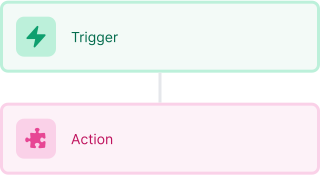
Select a trigger that sets your workflow in motion.
This could be anything from a new order in your Shopify store to a customer signing up for your newsletter.
Triggers are the starting points that tell MESA when to act.


Next, choose the action that should follow the trigger.
Actions are the tasks that MESA will perform automatically, such as sending a confirmation email or updating your product inventory.
Linking actions to triggers is how you build a seamless workflow process.
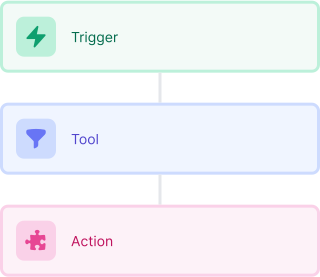
Make your workflow even more flexible using built-in apps.
Customize your automation with tools that match your specific needs, whether it's scheduling theme changes or syncing with your CRM.
Personalization ensures your workflows fit your unique business requirements.
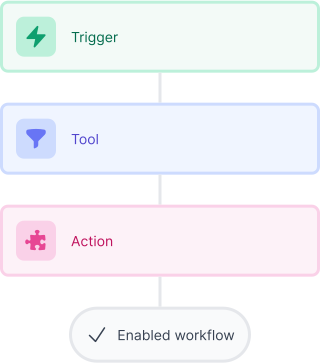
Finally, enable your workflow. You've just automated a task that will save you time and reduce manual effort.
With MESA, complex processes become simple, freeing you up to focus on what matters most—growing your business.

Get help from our team of experts and industry partners, who are dedicated to ensuring your MESA experience is smooth, efficient, and tailored to your exact business needs.